
Purpose:
Configuration for Focus to use Label prep printer
Currently on SNBC 580-LII is supported, the label size can be adjusted but 3"x2" is the recommended size for pizza locations and coffee shops.
Process:
Step 1: Create new printer driver with following configuration
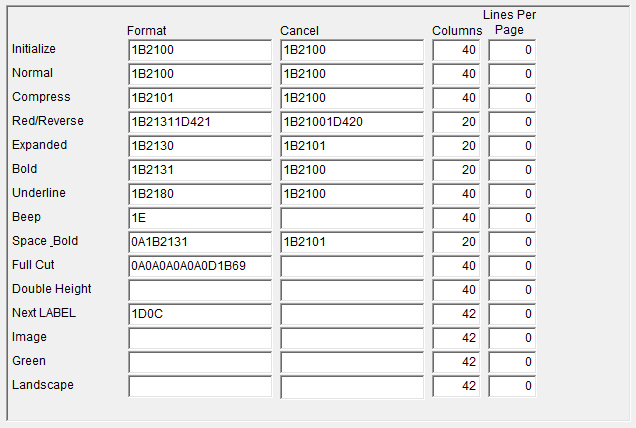
- Navigate to Setup>Printers>Formats
- Rename a unused field to Next Label, Save and Close
- Navigate to Setup>Printers>Drivers
- Enter the following Format, Cancel and Column settings
- Note: The 580-LII uses standard thermal print codes for formats
Step 2: Setup Remote Check Format
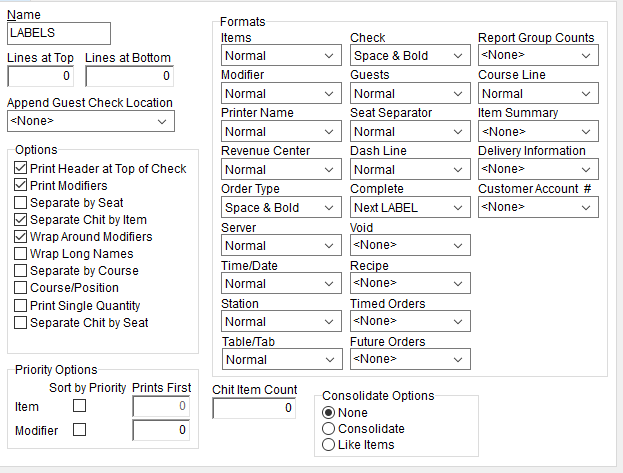
- Set Formats accordingly, only mandated format is Complete must use Next Label Format
- reminder that label space is limited, recommended to use normal format on most fields
- Select Options On as follows:
- Printer Header at Top Check
- Print Modifiers
- Separate Chit by Item
- Wrap Around Modifiers
- Consolidate set to NONE
- Configure Header as site desires-recommend only using 1-2 lines to preserve label space for items/modifiers
- Chase printing is not recommended
Step 3: Setup Remote Prep Printer in Setup>Printers>Remotes
- Select an unused printer in left column
- Enter the Name (example: Pizza Label)
- Select Station that is controlling printer
- Select Driver created in Step 1 (Label 580LII)
- Select Port (serial or IP)
- if IP set IP address in next field
- if serial set matching Baud rate (typically 9600)
- For Order Type set Remote Check Format to format created in Setup 2
- If using multiple formats set the format for the corresponding Order Type
- (ie - Delivery tickets header is differing from Pickup Tickets)
Pro Tip:
Remove the Quantity Command as Focus will only print 1 label if you enter 3 Pepperoni Pizza, they need to enter as Pepperoni Pizza, Pepperoni Pizza, Pepperoni Pizza
Troubleshooting:
Symptom: Label does not print until press feed button
Resolution: Update firmware (instructions below)
- Unzip the JK-E02 file attached
- Launch ByNet WinConfig
- You will need to change the NetwinConfig protocol to UDP
- choose Protocol Operations
- Select the "UDP" option and press ok
- Search Printers
- Select the Label Printer
- Select interface firmware and browse to the location of the unzipped contents from step 1
******************************************************************************************************
TM-L90
Driver info

Comments
4 comments
Switched a Positouch Site that wanted cut between each label like they were use to
Driver format for L-90/L90 plus "next label and cut"
1C284C020042311B69 label full cut
1C284C020042311D561 New label full cut (can adjust printer itself for partial)
Does anyone know where to change the size of the label in the printer driver format? We had to get a slightly longer label and its throwing off the label roll after a couple of items print
We found the solution to adjusting the length of the label - we reduced the NEXT LABEL Column field to reduce the number of characters
Please sign in to leave a comment.